
Loading Sku Data manually – using Postman (For M1 personnel)
When loading Sku data manually for a client follow these instructions.3
A. First you will need the clients sku data file to be able to load it. Sku data files are .txt files that looks similar to: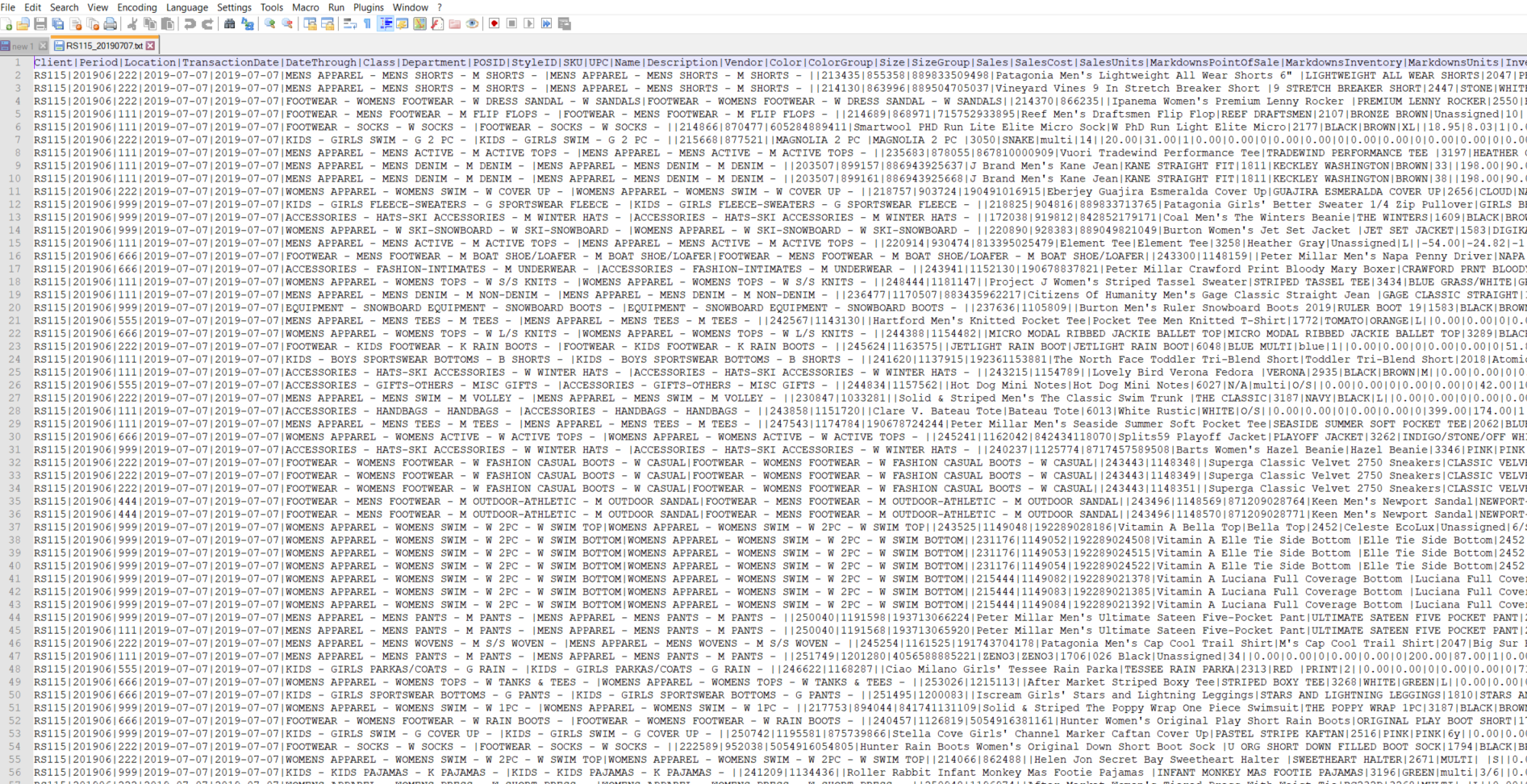
The data file could also be compressed into a zip folder (.zip), sku uploads need to be sent to retail orbit as a compressed folder so if it is not in a zip, compress it into one by right clicking the file, select send to > compressed folder.
B. Once you have the .zip with the data file inside, go to the Postman Application (install if necessary, it’s a cool dev tool for working with APIs).
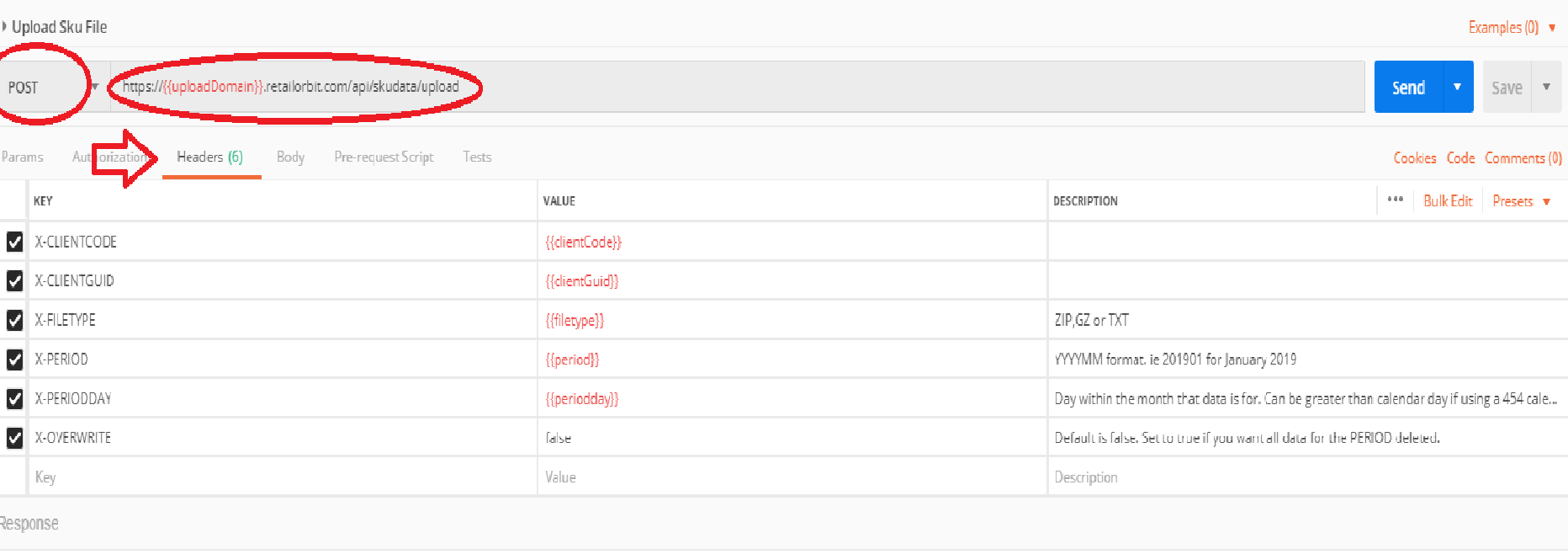
- In postman you will set the http method to POST and include the correct url path you want to upload the data to, for Retail Orbit’s live site this would be: http://www.retailorbit.com/api/skudata/upload
Note: you could change the url from “www.” To “beta.” If you wanted to load the data to the beta site.
2. Click the headers tab below the url, there will be 6 keys and values that need to be entered which are:
- X-CLIENTCODE : the value for this header is the client’s retail orbit client code.
- X-CLIENTGUID : the value is the retail orbit client’s auth code stored in their pro
- X-FILETYPE : the value for this is ZIP, the only two formats accepted are zip or gz.
- X-PERIOD : the value for this is the year and month that the data being loaded is for in YYYYMM format.
- X-PERIODDAY : this value is the day that the data is for, it should match the transaction date field in the actual file, if the data is for a full month the periodday would be the last day of that month.
- X-OVERWRITE : the value for this is true or false, false will load the data in and be included with any data already existing for the period, true will delete data in the period before processing the data being uploaded.
Your postman will look similar to:
3. Next, click the body tab next to headers, and click the radio dial for Binary. A box to choose file will appear, use it to select to .zip folder you wish to upload. Then click the blue Send button in the upper-right. In a moment you will get some feedback about the post, if the status is 200 it means the data passed the api, a response of 500 indicates it did not due to an error.
With a 200 message, the data will next be processing in mission control on Retail Orbit.
Comments
0 comments
Please sign in to leave a comment.